
Microsoft Teams Phone
Make outgoing calls from Microsoft Teams using your M-DCPS account. Connect with parents and others without using a classroom landline or displaying your personal cell phone number.

Ditch the Dial Tone. Dive into MS Teams Calls.
Teachers can now connect with parents and others directly from Microsoft Teams. This feature helps employees stay connected without making extra trips to a school phone and without calling from a personal number.
Use the sections below to learn how Teams Phone works on a computer, on a mobile device, and through your school Teams number.
Connect in a Click
Place outbound calls directly from Microsoft Teams on a computer or from the Teams mobile app.
Protect Your Personal Number
Calls placed through Teams do not display the employee's personal cell phone number.
School Teams Master Number
Outgoing calls display the school's Teams master number instead of a personal device number.
No Incoming or 911 Calls
Incoming calls are disabled and this Teams line cannot be used to make a 911 emergency call.
Ready to join the conversation?
Your MS Teams Phone is already available and ready to use for outgoing calls. It gives teachers another way to connect with parents directly while keeping personal phone numbers private.
When you are ready, use the Get Started section below to see how to place calls from a computer or mobile phone and how your school's Teams Phone number works.
Get Started with MS Teams Phone
Choose the section that matches what you need. Each section is organized in a clearer, more visual sequence.
Outgoing Calls from the Computer
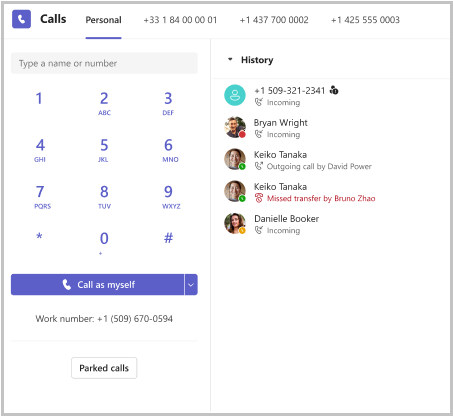
The Calls area in the Teams desktop app is the main workspace for placing calls and managing the people you contact most often. It combines the dial pad, recent calls, contacts, speed dial, and voicemail information in one experience.
- Use Calls to place an outgoing call to a phone number.
- Review call history to return missed calls or reconnect with someone quickly.
- Keep important people close by using speed dial and contact groups.
Open the Calls Experience
In the Teams desktop app, open Calls. This is where employees can place an outgoing call, use the dial pad, search for contacts, and view key calling tools in one place.
The redesigned layout makes it easier to move between calling tasks without opening multiple windows.
Review Call History in a New Way
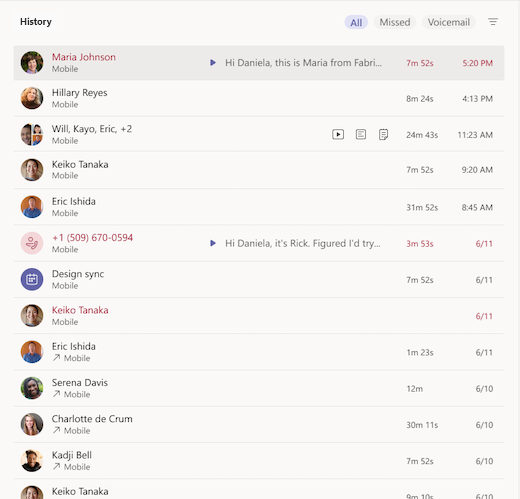
Call history now appears in the center of the Calls experience and shows past calls, including missed calls. This gives employees a quick way to review recent activity.
From the history list, hover over a contact and use More actions to return a call, start a chat, add the person to speed dial, or add the person to contacts.
Access Speed Dial, Contacts, and Voicemail
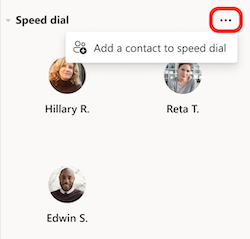
Speed dial contacts appear on the right side of the Calls experience, together with call groups, contacts, and voicemail summaries. This keeps important people and key calling tools within easy reach.
Contact groups help organize teammates based on a role or team. Employees can add a contact to a group from the More actions menu.
Important
You will not be able to make a 911 emergency call from this line. Use panic buttons in your school to report emergencies to the Main Office.
Outgoing Calls from your Mobile Phone
Employees can place Teams Phone calls from a personal mobile phone by using the Microsoft Teams app. This allows staff to stay connected while away from a desk while still protecting their personal number.
Sign in with the same M-DCPS account used on the desktop version of Teams, then use the Calls area in the mobile app.
Make a call with a phone number
Open the Teams app, go to Calls, and choose New Call. Enter the phone number and place the call directly from the mobile device.
Call a contact
Search for a person by name or use an existing contact. This makes it easy to call someone already stored in Teams without manually reentering a number.
Keep your personal number private
Calls made through Teams display the school's Teams master number, not the employee's personal cell phone number. This helps protect privacy while improving communication.
Apple Device Note
On some Apple devices, Teams may request local network access the first time a meeting or call is joined. This permission helps support Teams meetings and calling features.
Important
Microsoft Teams Phone cannot be used to make a 911 emergency call. Use panic buttons in the school to report emergencies to the Main Office.
Your MS Teams Phone Number
Each school has a Microsoft Teams Phone master number that is used for outgoing calls. When a teacher places a call through Teams, that school number is what the parent or other recipient sees on caller ID. The teacher's personal cell phone number is not displayed.
Teachers also have an individual Teams extension based on their employee number. The extension helps identify the employee within the Teams Phone system, but it is not shown to the person receiving the call.
Find the School Teams Number
Open Calls in Microsoft Teams. The school's Teams Phone number appears underneath the dial pad.
Know What the Recipient Sees
When a call is placed through Teams, caller ID displays the school's Teams master number rather than the teacher's personal phone number.
Understand Your Extension
Each teacher's extension is the employee number. The extension is used within the Teams Phone system and is not displayed on outgoing caller ID.
Incoming Calls Are Disabled
The Teams Phone number is for outgoing calls only, so parents and other recipients cannot return a missed call to that number. When leaving a voicemail, let the recipient know the best way to follow up, such as responding by email.
Experiencing Technical Difficulties?
Use the district support form to report an issue with Microsoft Teams Phone.